Introduction
Arcadia is a comprehensive torrent platform designed to be:
- Easy to setup - Get running quickly with minimal configuration
- Highly configurable - Customize the platform to your needs
- Content agnostic - Support for movies, TV shows, music, books, software, and more
- Well organized - Clean, intuitive interface for both users and administrators
The backend is built with Rust for speed and safety. The frontend is built with Typescript and VueJS, rendered client-side.
What Arcadia Supports
Arcadia supports a wide variety of content types including:
Movies
- Feature Film: Full-length films with rich metadata support.
- Short Film: Shorter cinematic works.
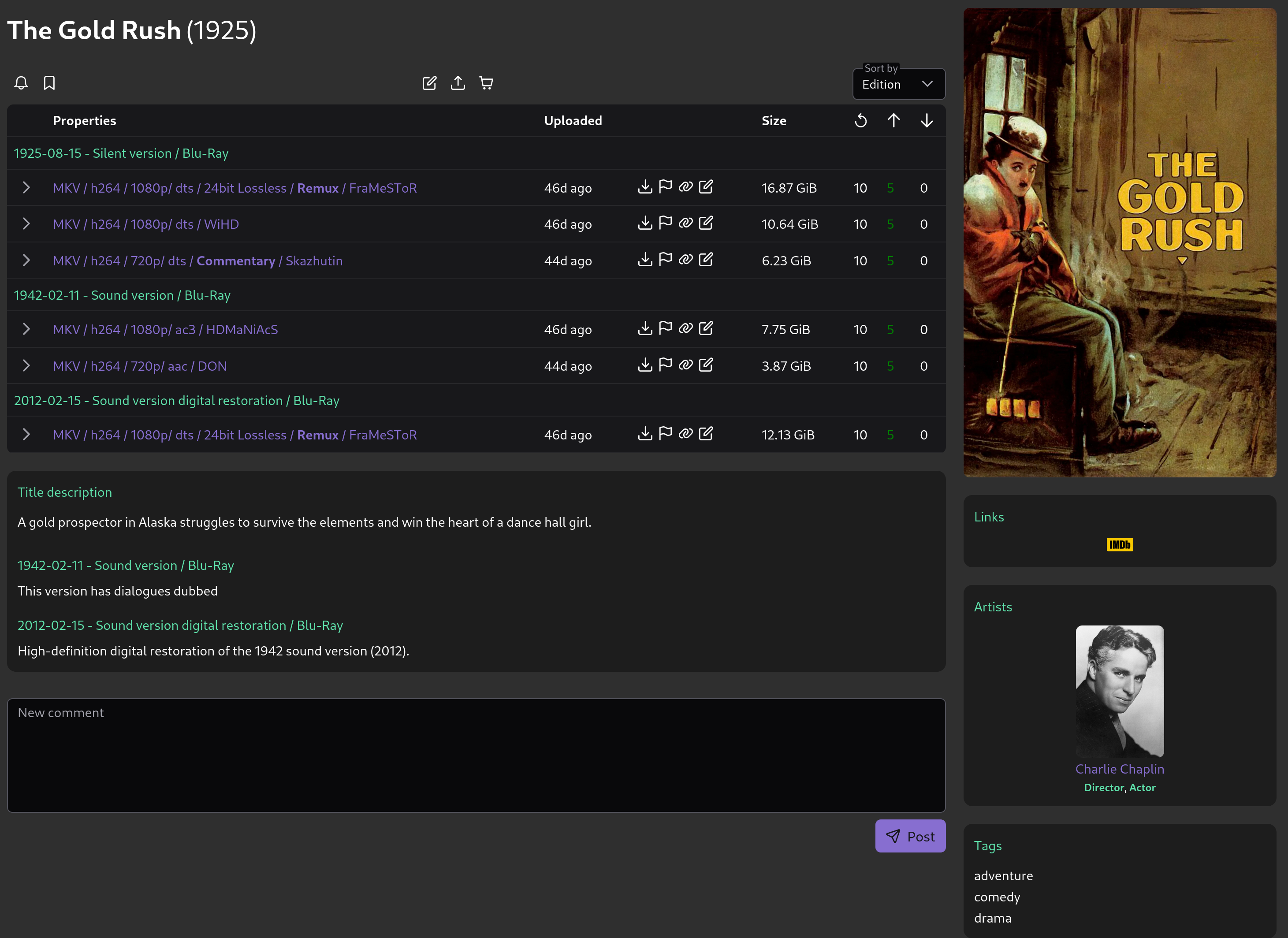
Movie entry
TV Shows
- Series and seasons with episode tracking capabilities.
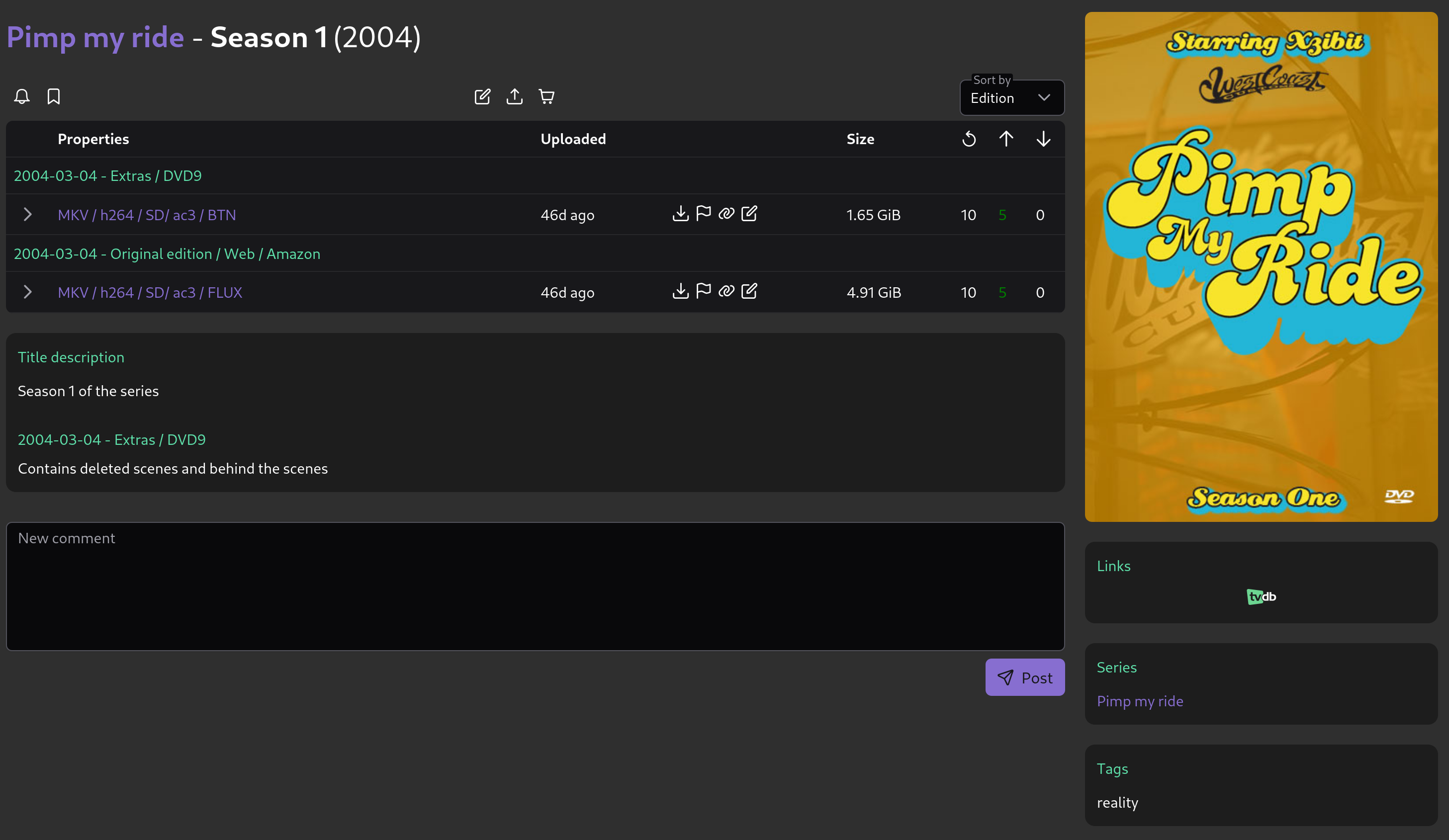
TV Show - Season entry
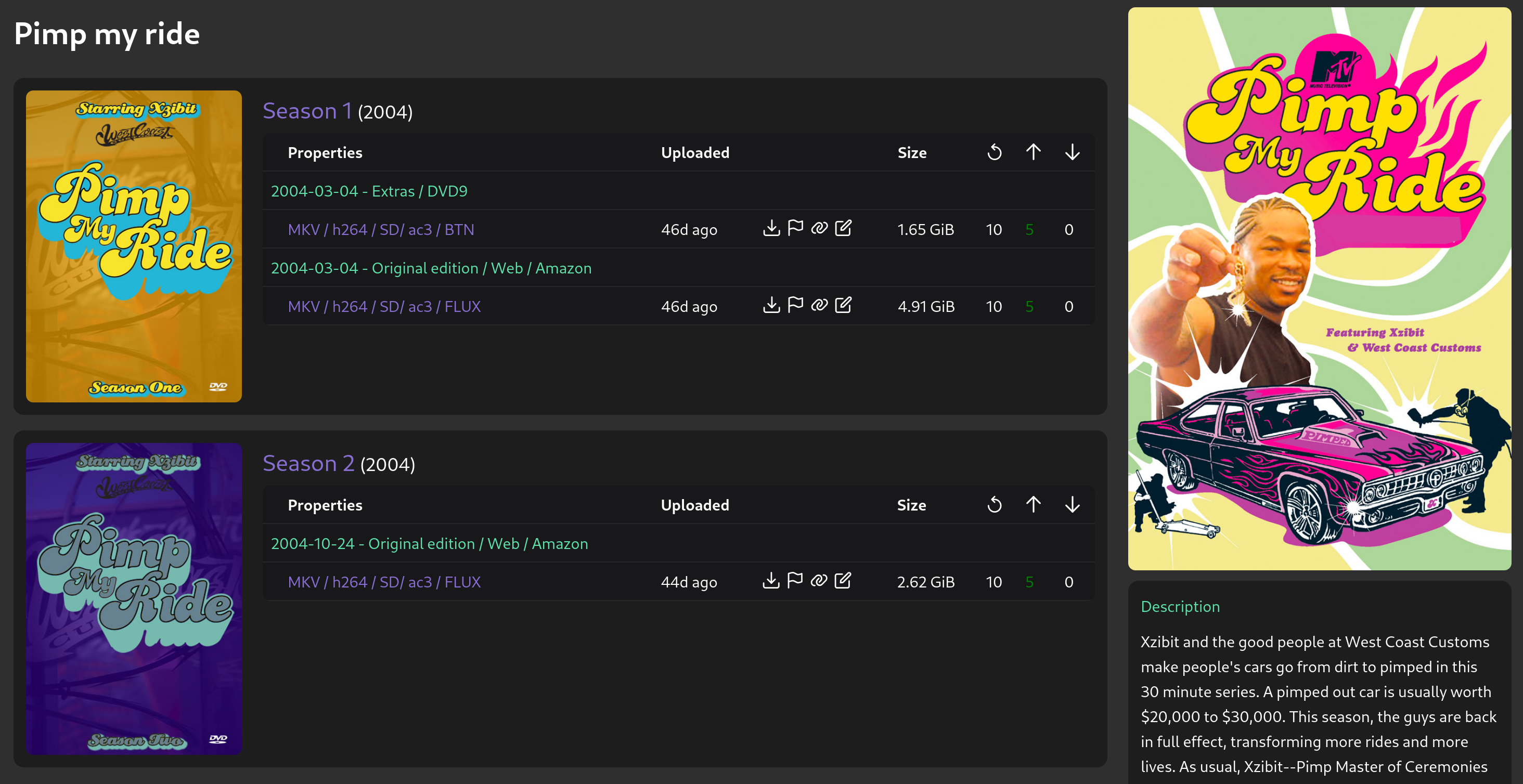
TV Show - Series view
Music
- Album: Includes “live album” as an “edition.”
- EP: Extended plays.
- Single: Individual tracks.
- Soundtrack: Music from movies, TV shows, or games.
- Anthology: Collections of works by an artist or group.
- Compilation: Curated collections of tracks.
- Remix: Reimagined versions of original tracks.
- Bootleg: Unofficial recordings.
- Mixtape: Curated playlists or unofficial releases.
- Concert Recording: Live performance recordings.
- DJ Mix: Continuous mixes by DJs.
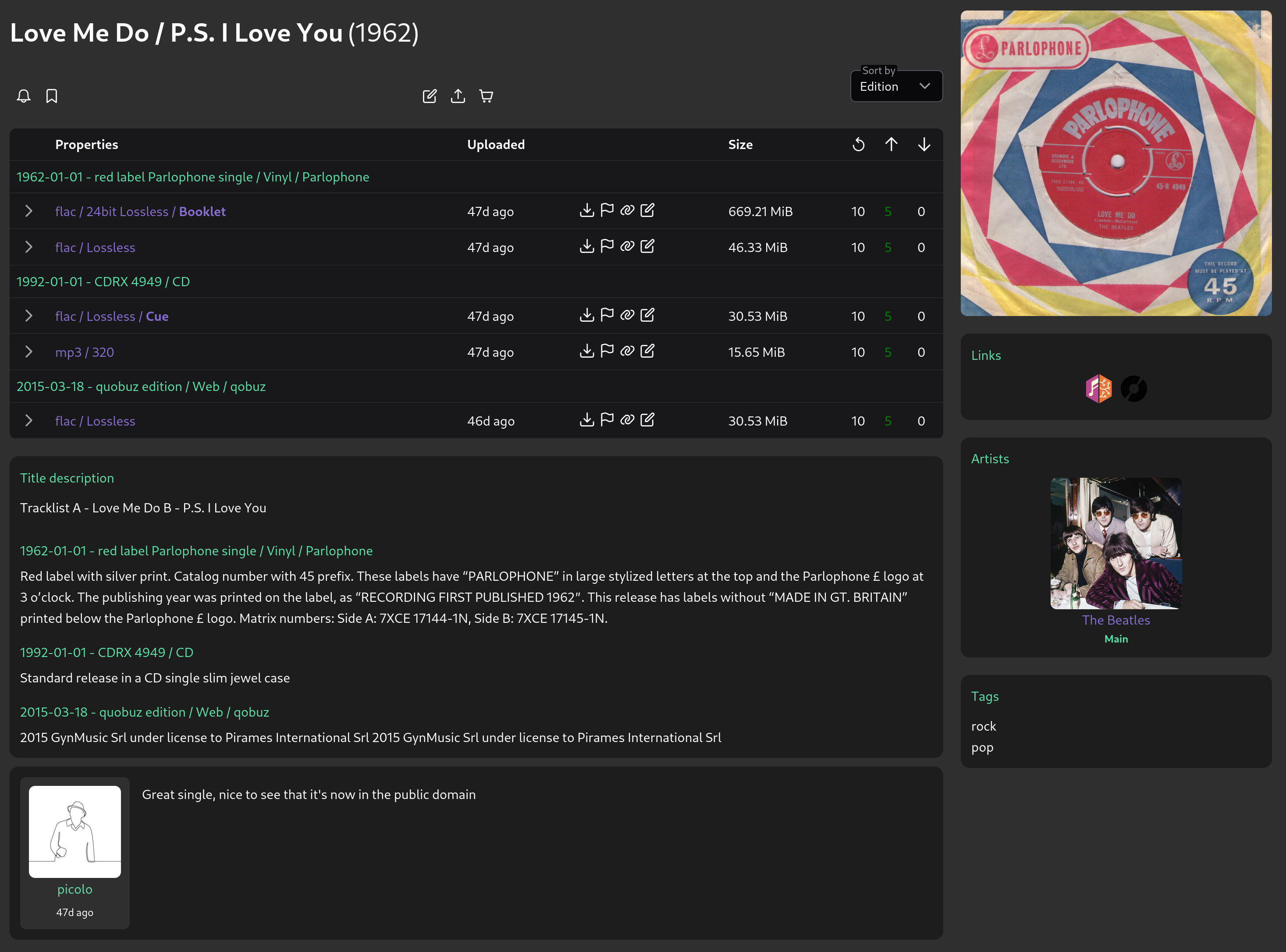
Music
Software
- Game: Video games of all genres.
- Program: Applications and utilities.
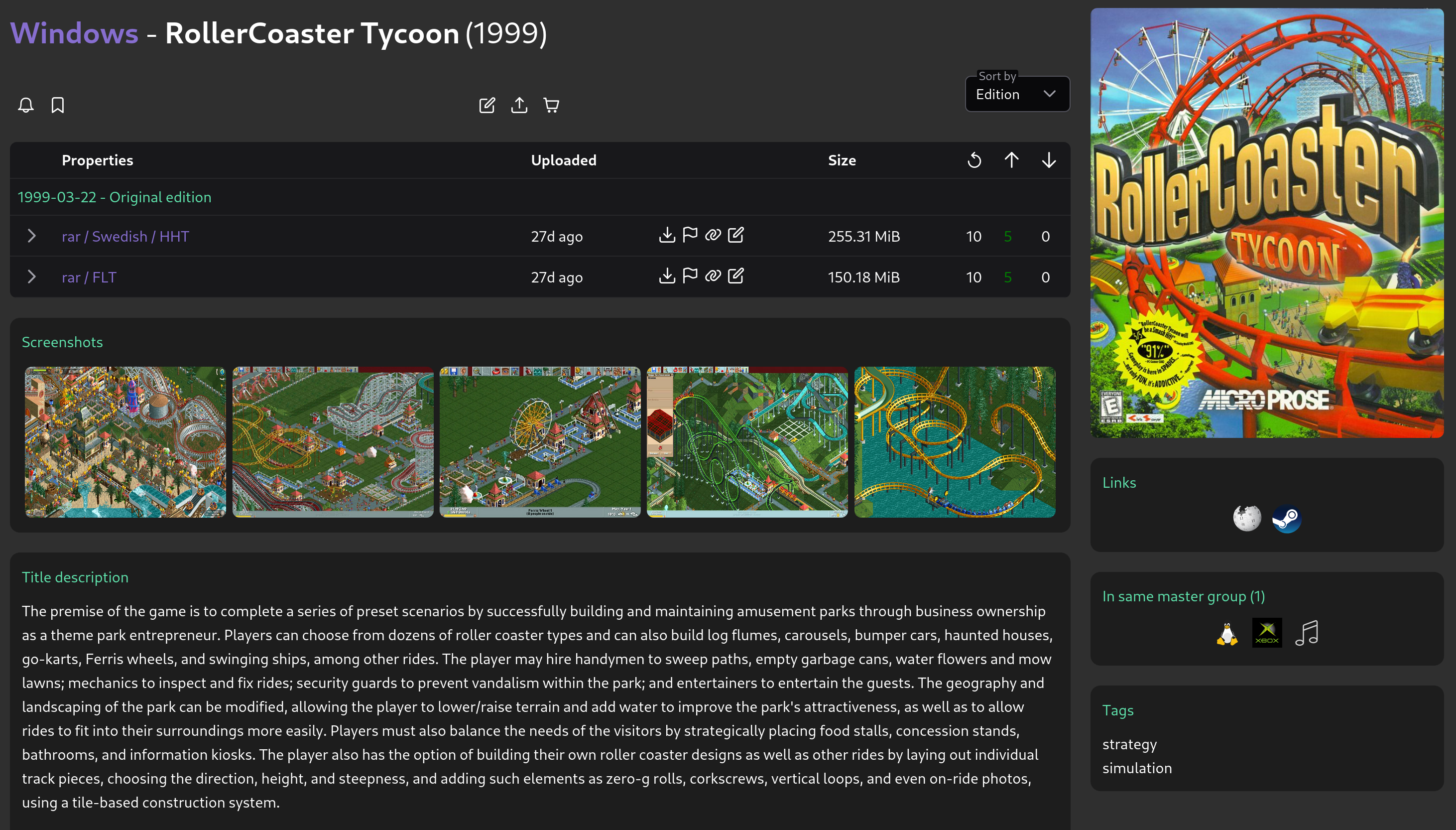
Software - Game
Written Documents
- Book: Includes hardcover, paperback, and digital formats.
- Illustrated: Includes mangas, comics, and visual novels.
- Periodical: Newspapers, magazines, and journals.
- Article: Studies, theses, essays, and research papers.
- Manual: Guides, music sheets, and instructional documents.
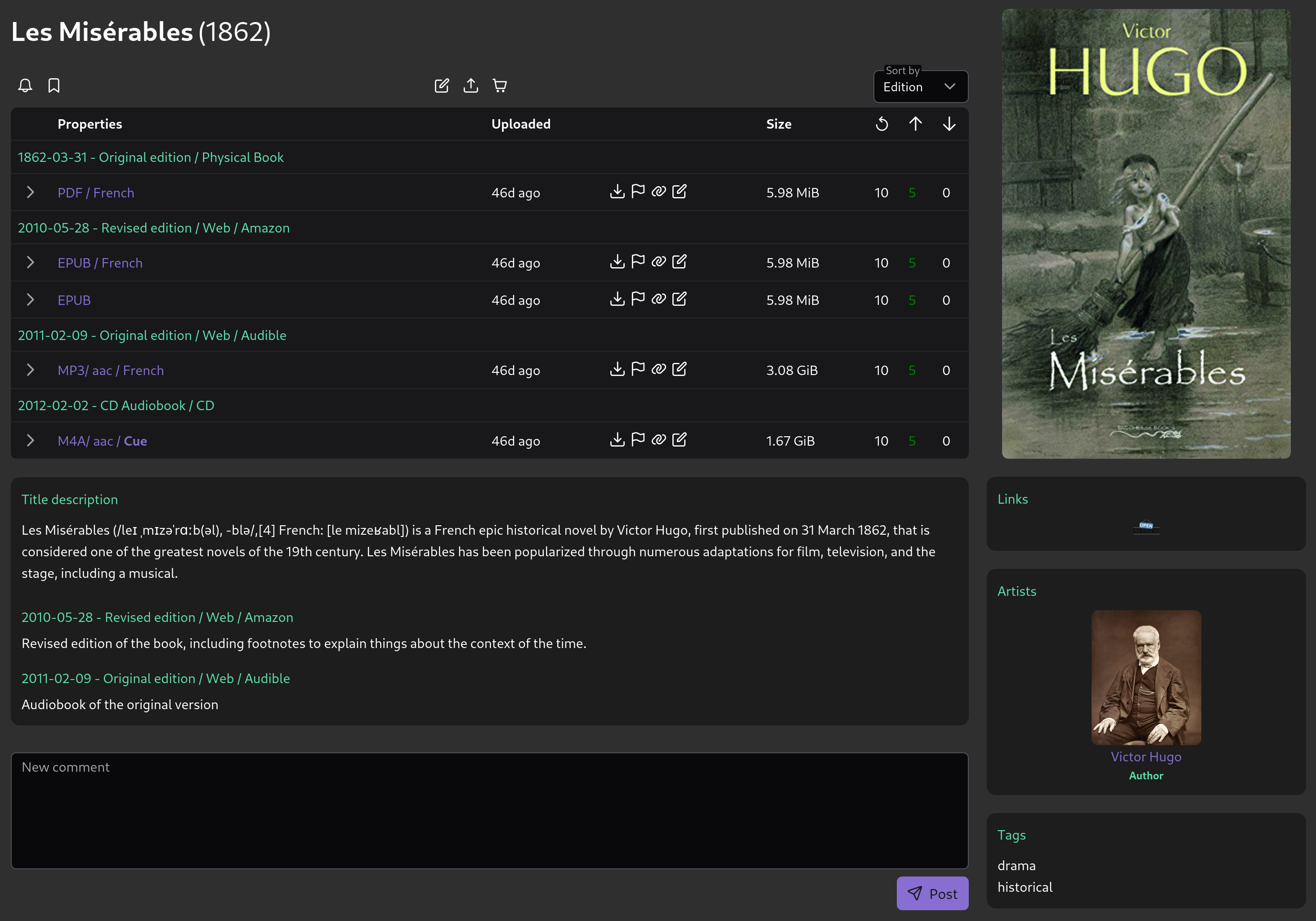
Book - Entry view
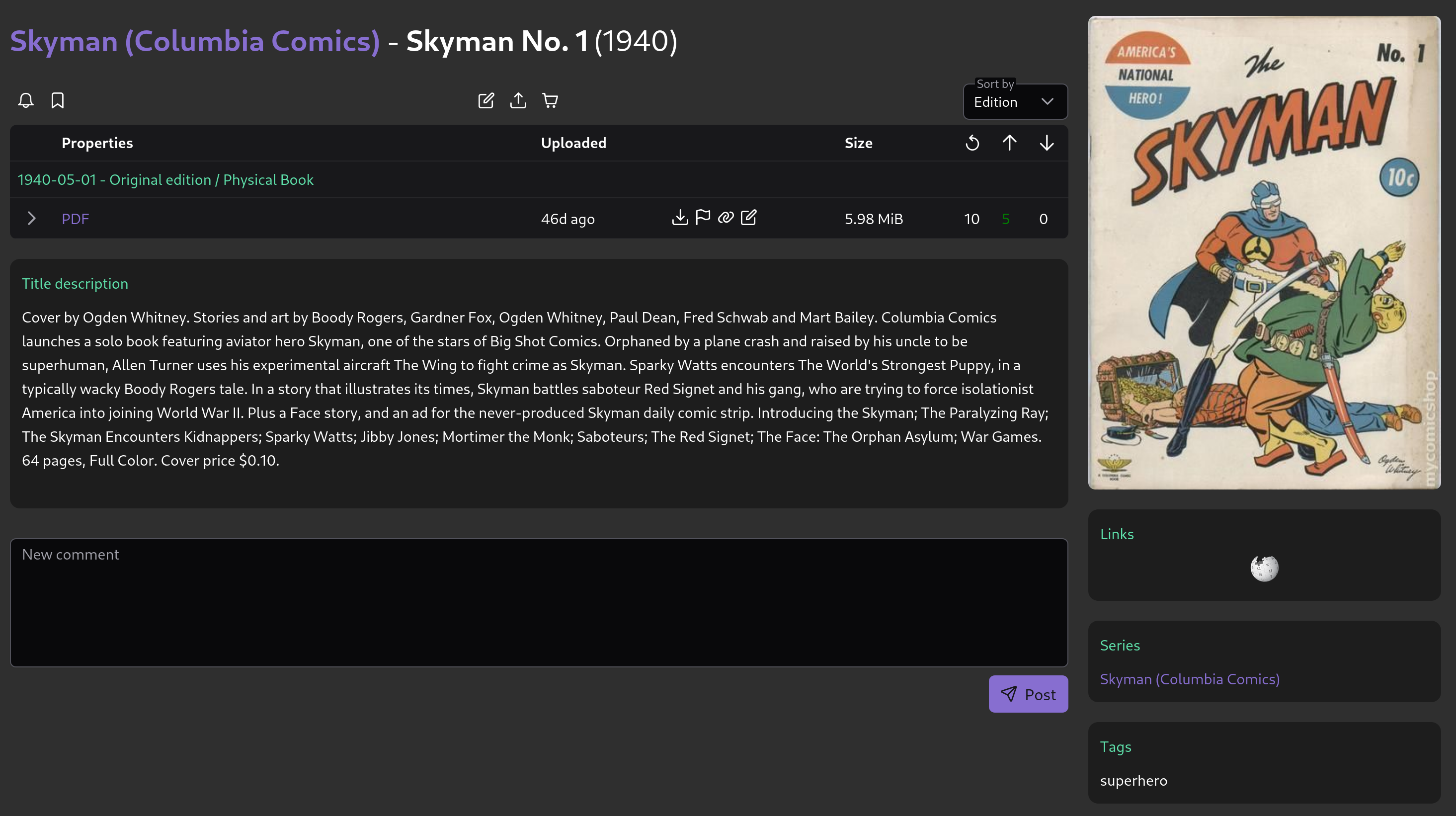
Book - Illustrated
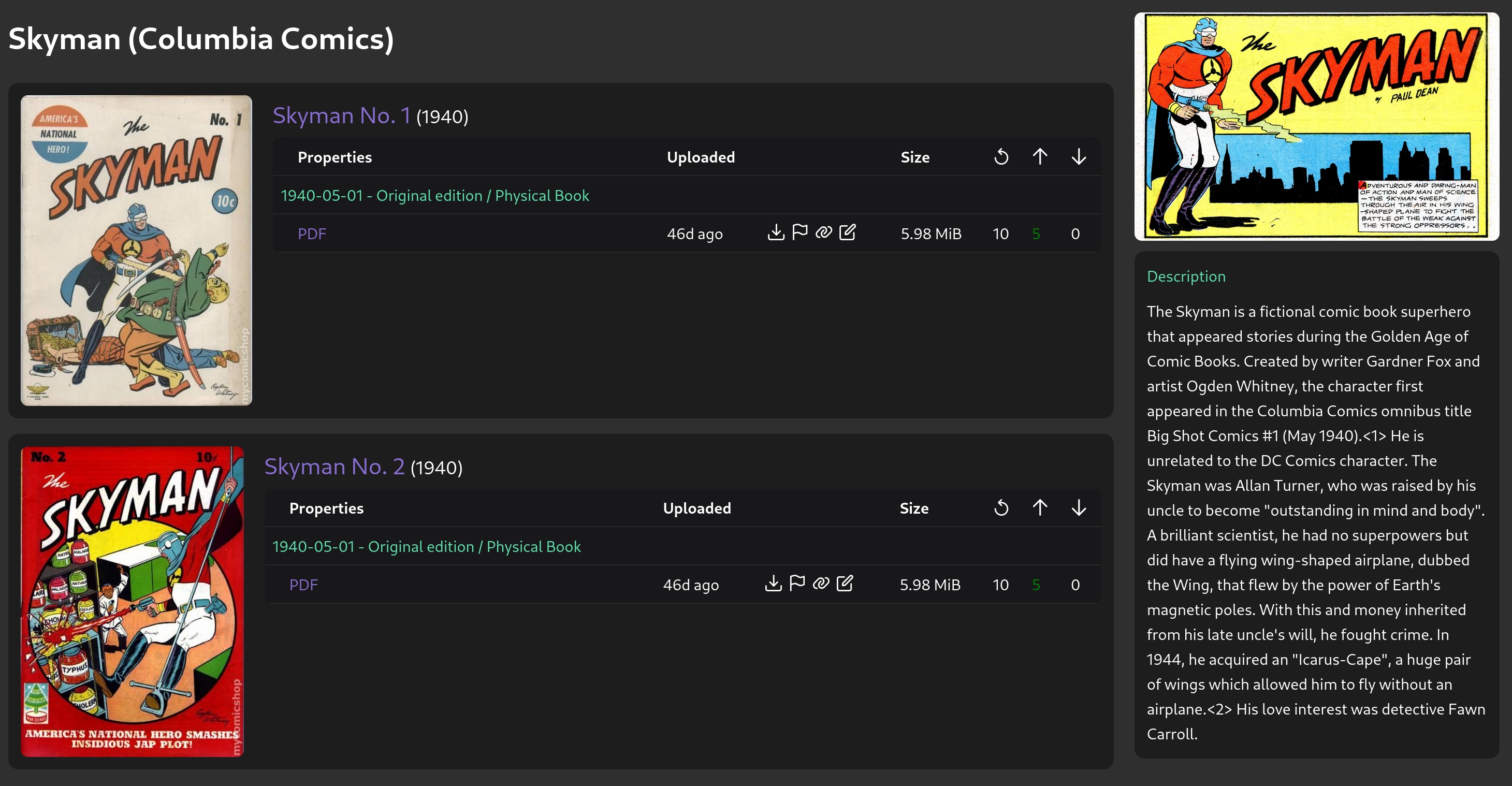
Book - Series view
Collections
Collections represent a “grouping” of content to avoid multiple uploads and reduce tracker load. Examples include site dumps, full/finished series, and monthly/yearly content groupings.
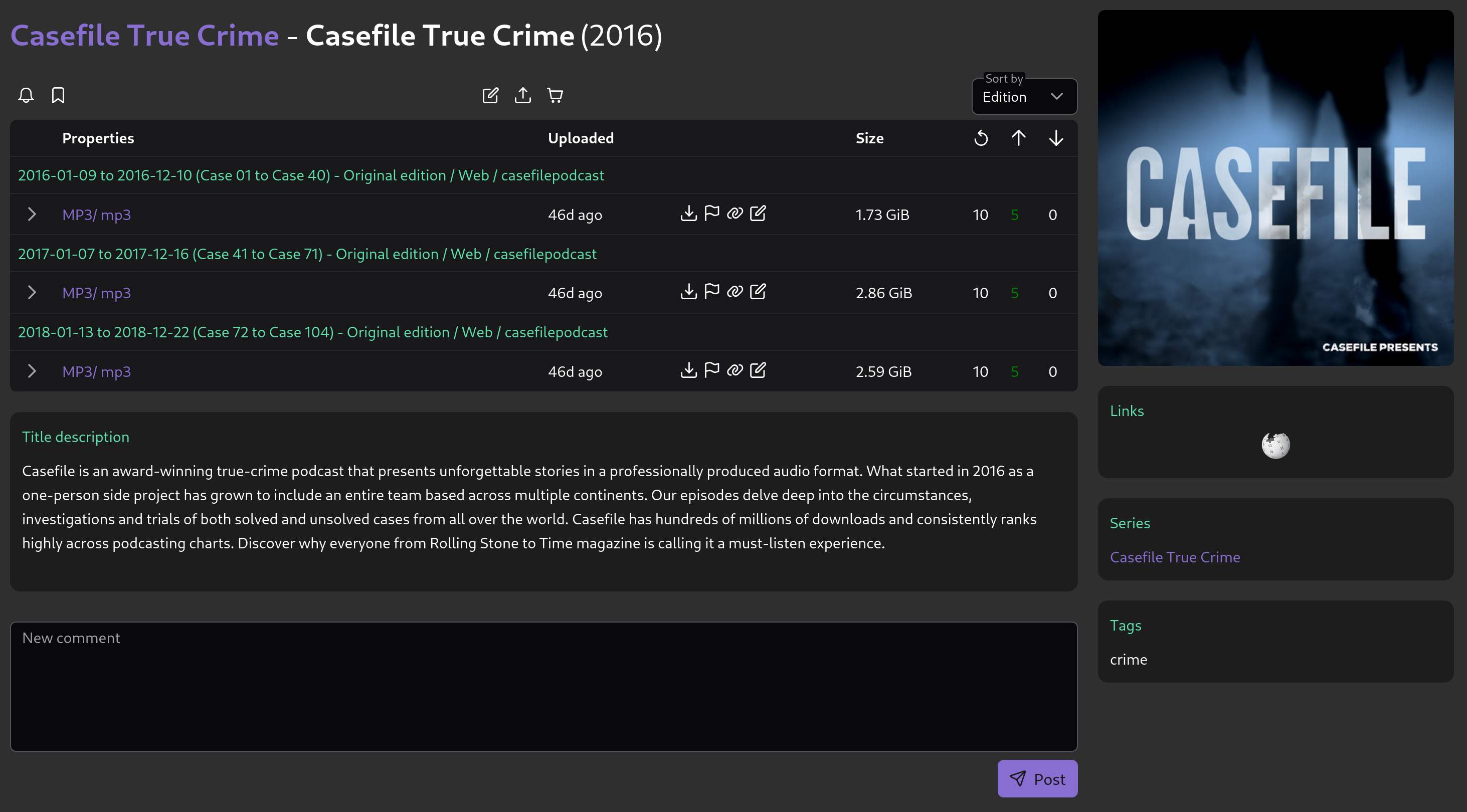
Podcast collection
Community
For contributions see CONTRIBUTING.md
Join our community:
- Discord: Join our server
Architecture
Overview
Arcadia is made of 2 main parts: the site’s API and a tracker. The site’s API is meant to be used by the frontend, while the tracker is meant to be used by torrent clients (qbittorrent, deluge, etc.).
Backend
Arcadia’s backend is a REST API written in rust with the actix framework and the sqlx database driver. It also uses PostgreSQL as its database.
Code Structure
API calls are forwarded to handlers, database requests are done by repositories, objects are defined by models. Directories with those names contain the relevant code.
A swagger for the API is available at http://localhost:8080/swagger-ui/
Frontend
Arcadia’s frontend is a SPA written in TypeScript and uses the Vue.js framework with PrimeVue components, Vite builds it.
API Schema Updates
If you make changes to structs that are listed in the swagger or the api routes, you must regenerate the typescript interfaces with this command (from the frontend directory, while the backend is running):
npx openapi-generator-cli generate -g typescript-axios -i http://127.0.0.1:8080/swagger-json/openapi.json -o ./src/services/api-schema -t .openapi-generator/templates --config .openapi-generator/openapi-generator.config.json --global-property=apiDocs=false,modelDocs=false,skipFormModel=false
Running Arcadia
There are two main ways to run Arcadia:
Configuration
The whole project is configured by a single config.yml file at the root of the repository:
backend, tracker, periodic tasks and frontend all read it. It is git ignored.
cp config.example.yml config.yml
Then edit config.yml with the values you want. config.example.yml is the reference: it
documents every key, and the ones that differ under Docker carry a docker: note giving the
value to use.
Other Customization
A few things need to be setup outside of config.yml.
Landing page
Arcadia allows you to display a custom landing page for not logged in users.
If frontend.enable_custom_front_page is set to true in config.yml, the file public/home/index.html will be served when visiting root url.
Assets
A few assets need to be setup.
frontend/src/assets/logo.svg: The logo of the site (displayed on the top left corner of the UI)frontend/public/favicon.ico: The favicon for the websitefrontend/public/default_user_avatar.png: The default avatar for users who didn’t set onefrontend/public/bonus_points_icon.png: The icon for bonus points
additional config files
Some of the services used with Arcadia need their own config files. kiwiirc and ergo are not required to run the rest of Arcadia
cp kiwiirc/config.json.example kiwiirc/config.json
cp ergo/ergo.motd.example ergo/ergo.motd
cp ergo/ergo-conf.yaml.example ergo/ergo-conf.yaml
The API tokens declared in ergo/ergo-conf.yaml must match the ones of the ergo section of
config.yml.
Setup Methods
Standard Setup
Install dependencies directly on your system. See Standard Setup for detailed instructions.
Docker Setup
Use containerized deployment with Docker Compose. See Docker Setup for detailed instructions.
Standard Setup
This page explains how to install and run Arcadia directly on your system without Docker containers.
Prerequisites
Before starting, ensure you have the following installed:
- PostgreSQL - Database server
- Redis - Cache for the auth
- Rust & Cargo - Required to build the backend
- Node.js & npm - Required to build the frontend
- Git - To clone the repository
For development tool installation instructions, see the Developer Setup guide.
Quick Start
- Clone the repository and navigate to it
- Set up PostgreSQL database
- Set up Redis
- Configure and run the backend
- Configure and run the frontend
- Configure and run the tracker
Database Setup
1. Install PostgreSQL
Install PostgreSQL on your system:
Ubuntu/Debian:
sudo apt-get update
sudo apt-get install postgresql postgresql-contrib
macOS:
brew install postgresql
brew services start postgresql
Windows: Download and install from PostgreSQL official website.
2. Create Database and User
Connect to PostgreSQL and create the database:
# Connect as postgres user
sudo -u postgres psql

# Or on Windows/macOS:
psql -U postgres
In the PostgreSQL shell:
-- Create user
CREATE USER arcadia WITH PASSWORD 'your_secure_password';

-- Create database
CREATE DATABASE arcadia OWNER arcadia;

-- Grant privileges
GRANT ALL PRIVILEGES ON DATABASE arcadia TO arcadia;

-- Exit
\q
3. Run Database Migrations
Install the database migration tool and run migrations:
# Install sqlx-cli
cargo install sqlx-cli --no-default-features --features native-tls,postgres

# Navigate to storage directory
cd backend/storage

# Run migrations
sqlx migrate run --database-url postgresql://arcadia:your_secure_password@localhost:5432/arcadia
sqlx-cli only reads --database-url or DATABASE_URL, it does not know about config.yml.
Use the credentials of its database section.
NOTE: if you get "Could not find directory of OpenSSL installation" error install
# Install openssl Ubuntu/Debian
sudo apt install pkg-config libssl-dev

# MacOS
brew install openssl@1.1

# Fedora
dnf install pkg-config openssl-devel
Redis setup
Backend Setup
Build and Run
Build and start the backend server:
cargo run --release
If you encounter build errors, install the required system dependencies:
Ubuntu/Debian:
sudo apt-get install libssl-dev openssl pkg-config
macOS:
xcode-select --install
Windows: Ensure you have Visual Studio Build Tools installed.
The backend will start and be accessible at http://localhost:8080.
Frontend Setup
Build and Run
Install dependencies and start the frontend:
npm install
npm run dev
The frontend will be accessible at http://localhost:5173 (or the port shown in the terminal).
Tracker Setup
Build and Run
Build and start the tracker server:
cargo run --release
Production Build
For production deployment:
Backend API
cd backend/api
cargo build --release

# Or from the root directory
cargo build -p arcadia-api --release

# The binary will be in target/release/arcadia-api
Tracker
cd tracker/arcadia_tracker
cargo build --release
Frontend
cd frontend
npm run build
# Built files will be in the dist/ directory
Troubleshooting
Database Issues
PostgreSQL not running:
# Ubuntu/Debian
sudo systemctl start postgresql
sudo systemctl enable postgresql

# macOS
brew services start postgresql
Connection errors:
- Verify PostgreSQL is running on port 5432
- Check that the database and user exist
- Ensure the
databasesection ofconfig.ymlis correct
Build Issues
Backend API build fails:
- Install system dependencies listed above
- Update Rust:
rustup update - Clear build cache:
cargo clean
Frontend build fails:
- Check Node.js version compatibility
- Clear npm cache:
npm cache clean --force - Delete
node_modulesand runnpm installagain
Runtime Issues
Backend API won’t start:
- Check the database connection
- Verify the values in
config.yml - Ensure migrations have been run
Frontend can’t connect to backend API:
- Verify the backend is running on the correct port
- Check
frontend.api_base_urlinconfig.yml, and restart the frontend: the section is inlined in the bundle at build time
Stopping Arcadia
To stop Arcadia:
- Stop the frontend with
Ctrl+Cin its terminal - Stop the tracker with
Ctrl+Cin its terminal and wait for its graceful shutdown - Stop the backend API with
Ctrl+Cin its terminal - Optionally stop PostgreSQL if you don’t need it for other applications
Upgrading Arcadia
This method is not the best, I know, but if you follow this guide carefully, it should be very simple.
In the root directory of the cloned Arcadia source, do:
-
First make a dump of the DB:
pg_dump -U postgres -d arcadia --data-only --column-inserts > arcadia-data.sqlThen copy the
arcadia-data.sqlfile in a safe place. -
Fetch and pull the origin changes to the local repo:
git fetch && git pull -
Drop the DB and re-create it:
sudo -u postgres psql -c "DROP DATABASE arcadia;" sudo -u postgres psql -c "CREATE DATABASE arcadia OWNER arcadia;"NOTE: Since you already created the
arcadiauser when you setup arcadia, it should run without issues. -
Run the sqlx migration:
NOTE: Don’t forget to change
THE_ACTUAL_PASSWORDto the actual password of the arcadia user in postgresql.cd backend/storage sqlx migrate run --database-url postgresql://arcadia:THE_ACTUAL_PASSWORD@localhost:5432/arcadia -
Adapt the dump so it will restore correctly:
Before restoring the dump we made, we have to change some stuff.
-
Comment or delete the _sqlx_migrations insert line (
INSERT INTO public._sqlx_migrations (version, description, installed_on, success, checksum, execution_time) VALUES [...]) -
Comment or delete the css_sheets insert line (
INSERT INTO public.css_sheets (created_at, created_by_id, name, css, preview_image_url) VALUES [...]) -
Sort the classes correctly:
NOTE: Here, if you created multiple classes, you have to sort them. The classes below are the ones I created for example. You are NOT required to take these same classes; this is just an example.
INSERT INTO public.user_classes (name, new_permissions, max_snatches_per_day, automatic_promotion, automatic_demotion, promotion_allowed_while_warned, previous_user_class, required_account_age_in_days, required_ratio, required_torrent_uploads, required_torrent_uploads_in_unique_title_groups, required_uploaded, required_torrent_snatched, required_downloaded, required_forum_posts, required_forum_posts_in_unique_threads, required_title_group_comments, required_seeding_size, promotion_cost_bonus_points) VALUES ('Guest', '{immune_activity_pruning,send_pm}', NULL, false, false, false, NULL, 0, 0, 0, 0, 0, 0, 0, 0, 0, 0, 0, 0); INSERT INTO public.user_classes (name, new_permissions, max_snatches_per_day, automatic_promotion, automatic_demotion, promotion_allowed_while_warned, previous_user_class, required_account_age_in_days, required_ratio, required_torrent_uploads, required_torrent_uploads_in_unique_title_groups, required_uploaded, required_torrent_snatched, required_downloaded, required_forum_posts, required_forum_posts_in_unique_threads, required_title_group_comments, required_seeding_size, promotion_cost_bonus_points) VALUES ('User', '{download_torrent,upload_torrent,create_torrent_request,immune_activity_pruning,create_forum_post,send_pm,view_torrent_peers}', NULL, true, false, false, NULL, 0, 0, 0, 0, 0, 0, 0, 0, 0, 0, 0, 0); INSERT INTO public.user_classes (name, new_permissions, max_snatches_per_day, automatic_promotion, automatic_demotion, promotion_allowed_while_warned, previous_user_class, required_account_age_in_days, required_ratio, required_torrent_uploads, required_torrent_uploads_in_unique_title_groups, required_uploaded, required_torrent_snatched, required_downloaded, required_forum_posts, required_forum_posts_in_unique_threads, required_title_group_comments, required_seeding_size, promotion_cost_bonus_points) VALUES ('Member', '{download_torrent,upload_torrent,create_torrent_request,immune_activity_pruning,create_forum_post,send_pm,view_torrent_peers,edit_collage}', NULL, true, true, false, 'User', 7, 0.65, 0, 0, 10737418240, 0, 0, 0, 0, 0, 0, 0); INSERT INTO public.user_classes (name, new_permissions, max_snatches_per_day, automatic_promotion, automatic_demotion, promotion_allowed_while_warned, previous_user_class, required_account_age_in_days, required_ratio, required_torrent_uploads, required_torrent_uploads_in_unique_title_groups, required_uploaded, required_torrent_snatched, required_downloaded, required_forum_posts, required_forum_posts_in_unique_threads, required_title_group_comments, required_seeding_size, promotion_cost_bonus_points) VALUES ('Power User', '{download_torrent,upload_torrent,create_torrent_request,immune_activity_pruning,create_forum_thread,create_forum_post,send_pm,view_torrent_peers,edit_collage}', NULL, true, true, false, 'Member', 14, 0.65, 5, 0, 26843545600, 0, 0, 0, 0, 0, 0, 0); INSERT INTO public.user_classes (name, new_permissions, max_snatches_per_day, automatic_promotion, automatic_demotion, promotion_allowed_while_warned, previous_user_class, required_account_age_in_days, required_ratio, required_torrent_uploads, required_torrent_uploads_in_unique_title_groups, required_uploaded, required_torrent_snatched, required_downloaded, required_forum_posts, required_forum_posts_in_unique_threads, required_title_group_comments, required_seeding_size, promotion_cost_bonus_points) VALUES ('Elite', '{download_torrent,upload_torrent,create_torrent_request,immune_activity_pruning,create_forum_thread,create_forum_post,send_pm,view_torrent_peers,edit_collage,edit_torrent,create_wiki_article,link_similar_wiki_articles,edit_title_group,edit_edition_group,edit_artist,delete_artist,delete_title_group,edit_series,delete_series,remove_title_group_from_series,delete_title_group_tag,edit_title_group_tag,delete_torrent,edit_wiki_article,merge_title_group,delete_edition_group,move_torrent_to_other_edition_group,view_stats_details}', NULL, true, true, false, 'Power User', 28, 0.65, 50, 0, 107374182400, 0, 0, 0, 0, 0, 0, 0); INSERT INTO public.user_classes (name, new_permissions, max_snatches_per_day, automatic_promotion, automatic_demotion, promotion_allowed_while_warned, previous_user_class, required_account_age_in_days, required_ratio, required_torrent_uploads, required_torrent_uploads_in_unique_title_groups, required_uploaded, required_torrent_snatched, required_downloaded, required_forum_posts, required_forum_posts_in_unique_threads, required_title_group_comments, required_seeding_size, promotion_cost_bonus_points) VALUES ('Torrent Master', '{download_torrent,upload_torrent,create_torrent_request,immune_activity_pruning,create_forum_thread,create_forum_post,send_pm,view_torrent_peers,edit_collage,edit_torrent,create_wiki_article,link_similar_wiki_articles,edit_title_group,edit_edition_group,edit_artist,delete_artist,delete_title_group,edit_series,delete_series,remove_title_group_from_series,delete_title_group_tag,edit_title_group_tag,delete_torrent,edit_wiki_article,merge_title_group,delete_edition_group,move_torrent_to_other_edition_group,view_stats_details,set_user_custom_title}', NULL, true, true, false, 'Elite', 56, 0.65, 500, 0, 536870912000, 0, 0, 0, 0, 0, 0, 0); INSERT INTO public.user_classes (name, new_permissions, max_snatches_per_day, automatic_promotion, automatic_demotion, promotion_allowed_while_warned, previous_user_class, required_account_age_in_days, required_ratio, required_torrent_uploads, required_torrent_uploads_in_unique_title_groups, required_uploaded, required_torrent_snatched, required_downloaded, required_forum_posts, required_forum_posts_in_unique_threads, required_title_group_comments, required_seeding_size, promotion_cost_bonus_points) VALUES ('Power TM', '{download_torrent,upload_torrent,create_torrent_request,immune_activity_pruning,create_forum_thread,create_forum_post,send_pm,view_torrent_peers,edit_collage,edit_torrent,create_wiki_article,link_similar_wiki_articles,edit_title_group,edit_edition_group,edit_artist,delete_artist,delete_title_group,edit_series,delete_series,remove_title_group_from_series,delete_title_group_tag,edit_title_group_tag,delete_torrent,edit_wiki_article,merge_title_group,delete_edition_group,move_torrent_to_other_edition_group,view_stats_details,set_user_custom_title}', NULL, true, true, false, 'Torrent Master', 56, 0.65, 0, 500, 536870912000, 0, 0, 0, 0, 0, 0, 0); INSERT INTO public.user_classes (name, new_permissions, max_snatches_per_day, automatic_promotion, automatic_demotion, promotion_allowed_while_warned, previous_user_class, required_account_age_in_days, required_ratio, required_torrent_uploads, required_torrent_uploads_in_unique_title_groups, required_uploaded, required_torrent_snatched, required_downloaded, required_forum_posts, required_forum_posts_in_unique_threads, required_title_group_comments, required_seeding_size, promotion_cost_bonus_points) VALUES ('Elite TM', '{download_torrent,upload_torrent,create_torrent_request,immune_activity_pruning,create_forum_thread,create_forum_post,send_pm,view_torrent_peers,edit_collage,edit_torrent,create_wiki_article,link_similar_wiki_articles,edit_title_group,edit_edition_group,edit_artist,delete_artist,delete_title_group,edit_series,delete_series,remove_title_group_from_series,delete_title_group_tag,edit_title_group_tag,delete_torrent,edit_wiki_article,merge_title_group,delete_edition_group,move_torrent_to_other_edition_group,view_stats_details,set_user_custom_title}', NULL, true, true, false, 'Power TM', 0, 0, 0, 0, 0, 0, 0, 0, 0, 0, 0, 0); INSERT INTO public.user_classes (name, new_permissions, max_snatches_per_day, automatic_promotion, automatic_demotion, promotion_allowed_while_warned, previous_user_class, required_account_age_in_days, required_ratio, required_torrent_uploads, required_torrent_uploads_in_unique_title_groups, required_uploaded, required_torrent_snatched, required_downloaded, required_forum_posts, required_forum_posts_in_unique_threads, required_title_group_comments, required_seeding_size, promotion_cost_bonus_points) VALUES ('VIP', '{download_torrent,upload_torrent,create_torrent_request,immune_activity_pruning,create_forum_thread,create_forum_post,send_pm,view_torrent_peers,edit_collage,edit_torrent,create_wiki_article,link_similar_wiki_articles,edit_title_group,edit_edition_group,edit_artist,delete_artist,delete_title_group,edit_series,delete_series,remove_title_group_from_series,delete_title_group_tag,edit_title_group_tag,delete_torrent,edit_wiki_article,merge_title_group,delete_edition_group,move_torrent_to_other_edition_group,view_stats_details,set_user_custom_title}', NULL, false, false, false, 'Elite TM', 0, 0, 0, 0, 0, 0, 0, 0, 0, 0, 0, 0); INSERT INTO public.user_classes (name, new_permissions, max_snatches_per_day, automatic_promotion, automatic_demotion, promotion_allowed_while_warned, previous_user_class, required_account_age_in_days, required_ratio, required_torrent_uploads, required_torrent_uploads_in_unique_title_groups, required_uploaded, required_torrent_snatched, required_downloaded, required_forum_posts, required_forum_posts_in_unique_threads, required_title_group_comments, required_seeding_size, promotion_cost_bonus_points) VALUES ('Legend', '{download_torrent,upload_torrent,create_torrent_request,immune_activity_pruning,create_forum_thread,create_forum_post,send_pm,view_torrent_peers,edit_collage,edit_torrent,set_user_custom_title,link_similar_wiki_articles,edit_wiki_article,create_wiki_article,delete_forum_post,edit_forum_post,edit_forum_thread,edit_title_group,edit_title_group_comment,edit_edition_group,edit_artist,edit_series,edit_torrent_request,edit_title_group_tag,move_torrent_to_other_edition_group,delete_edition_group,view_stats_details,merge_title_group,delete_collage_entry,search_user_edit_change_logs,delete_torrent,delete_title_group_tag,delete_series,remove_title_group_from_series,delete_artist,delete_title_group}', NULL, false, false, false, 'VIP', 0, 0, 0, 0, 0, 0, 0, 0, 0, 0, 0, 0); INSERT INTO public.user_classes (name, new_permissions, max_snatches_per_day, automatic_promotion, automatic_demotion, promotion_allowed_while_warned, previous_user_class, required_account_age_in_days, required_ratio, required_torrent_uploads, required_torrent_uploads_in_unique_title_groups, required_uploaded, required_torrent_snatched, required_downloaded, required_forum_posts, required_forum_posts_in_unique_threads, required_title_group_comments, required_seeding_size, promotion_cost_bonus_points) VALUES ('Forum Moderators', '{download_torrent,upload_torrent,create_torrent_request,immune_activity_pruning,create_forum_thread,create_forum_post,send_pm,view_torrent_peers,edit_collage,edit_torrent,set_user_custom_title,link_similar_wiki_articles,edit_wiki_article,create_wiki_article,delete_forum_post,edit_forum_post,edit_forum_thread,edit_title_group,edit_title_group_comment,edit_edition_group,edit_artist,edit_series,edit_torrent_request,edit_title_group_tag,move_torrent_to_other_edition_group,delete_edition_group,view_stats_details,merge_title_group,delete_collage_entry,search_user_edit_change_logs,delete_torrent,delete_title_group_tag,delete_series,remove_title_group_from_series,delete_artist,delete_title_group,delete_forum_thread,lock_forum_thread,pin_forum_thread,manage_related_forum_thread,delete_forum_sub_category,create_forum_sub_category,edit_forum_sub_category}', NULL, false, false, false, 'Legend', 0, 0, 0, 0, 0, 0, 0, 0, 0, 0, 0, 0); INSERT INTO public.user_classes (name, new_permissions, max_snatches_per_day, automatic_promotion, automatic_demotion, promotion_allowed_while_warned, previous_user_class, required_account_age_in_days, required_ratio, required_torrent_uploads, required_torrent_uploads_in_unique_title_groups, required_uploaded, required_torrent_snatched, required_downloaded, required_forum_posts, required_forum_posts_in_unique_threads, required_title_group_comments, required_seeding_size, promotion_cost_bonus_points) VALUES ('Moderator', '{download_torrent,create_torrent_request,immune_activity_pruning,create_forum_thread,create_forum_post,send_pm,view_torrent_peers,edit_collage,edit_torrent,set_user_custom_title,link_similar_wiki_articles,edit_wiki_article,create_wiki_article,delete_forum_post,edit_forum_post,edit_forum_thread,edit_title_group,edit_title_group_comment,edit_edition_group,edit_artist,edit_series,edit_torrent_request,edit_title_group_tag,move_torrent_to_other_edition_group,delete_edition_group,edit_torrent_up_down_factors,view_stats_details,merge_title_group,delete_collage_entry,search_user_edit_change_logs,delete_torrent,delete_title_group_tag,delete_series,remove_title_group_from_series,delete_artist,delete_title_group,read_staff_pm,reply_staff_pm,unresolve_staff_pm,resolve_staff_pm,set_torrent_staff_checked,upload_torrent,pin_forum_thread,delete_forum_thread,lock_forum_thread,delete_collage,create_css_sheet,edit_css_sheet,warn_user,ban_user,edit_user,edit_user_permissions,lock_user_class,change_user_class,search_unauthorized_access,see_foreign_torrent_clients}', NULL, false, false, false, 'Forum Moderators', 0, 0, 0, 0, 0, 0, 0, 0, 0, 0, 0, 0); INSERT INTO public.user_classes (name, new_permissions, max_snatches_per_day, automatic_promotion, automatic_demotion, promotion_allowed_while_warned, previous_user_class, required_account_age_in_days, required_ratio, required_torrent_uploads, required_torrent_uploads_in_unique_title_groups, required_uploaded, required_torrent_snatched, required_downloaded, required_forum_posts, required_forum_posts_in_unique_threads, required_title_group_comments, required_seeding_size, promotion_cost_bonus_points) VALUES ('Senior Moderator', '{download_torrent,create_torrent_request,immune_activity_pruning,create_forum_thread,create_forum_post,send_pm,view_torrent_peers,edit_collage,edit_torrent,set_user_custom_title,link_similar_wiki_articles,edit_wiki_article,create_wiki_article,delete_forum_post,edit_forum_post,edit_forum_thread,edit_title_group,edit_title_group_comment,edit_edition_group,edit_artist,edit_series,edit_torrent_request,edit_title_group_tag,move_torrent_to_other_edition_group,delete_edition_group,edit_torrent_up_down_factors,view_stats_details,merge_title_group,delete_collage_entry,search_user_edit_change_logs,delete_torrent,delete_title_group_tag,delete_series,remove_title_group_from_series,delete_artist,delete_title_group,read_staff_pm,reply_staff_pm,unresolve_staff_pm,resolve_staff_pm,set_torrent_staff_checked,upload_torrent,pin_forum_thread,delete_forum_category,delete_forum_sub_category,delete_forum_thread,lock_forum_thread,edit_forum_sub_category,edit_forum_category,create_forum_category,create_forum_sub_category,delete_collage,create_css_sheet,edit_css_sheet,warn_user,ban_user,edit_user,edit_user_permissions,lock_user_class,change_user_class,search_unauthorized_access,see_foreign_torrent_clients,search_donation,edit_donation,edit_user_class,create_user_class,read_all_conversations,edit_user_badge,view_invisible_user_badges,award_user_badge,revoke_user_badge,manage_related_forum_thread,search_users,edit_user_badge_category,create_user_badge_category,delete_user_badge,create_user_badge,delete_user_badge_category,manage_site_highlights}', NULL, false, false, false, 'Moderator', 0, 0, 0, 0, 0, 0, 0, 0, 0, 0, 0, 0); INSERT INTO public.user_classes (name, new_permissions, max_snatches_per_day, automatic_promotion, automatic_demotion, promotion_allowed_while_warned, previous_user_class, required_account_age_in_days, required_ratio, required_torrent_uploads, required_torrent_uploads_in_unique_title_groups, required_uploaded, required_torrent_snatched, required_downloaded, required_forum_posts, required_forum_posts_in_unique_threads, required_title_group_comments, required_seeding_size, promotion_cost_bonus_points) VALUES ('Administrator', '{download_torrent,create_torrent_request,immune_activity_pruning,create_forum_thread,create_forum_post,send_pm,view_torrent_peers,edit_collage,edit_torrent,set_user_custom_title,link_similar_wiki_articles,edit_wiki_article,create_wiki_article,delete_forum_post,edit_forum_post,edit_forum_thread,edit_title_group,edit_title_group_comment,edit_edition_group,edit_artist,edit_series,edit_torrent_request,edit_title_group_tag,move_torrent_to_other_edition_group,delete_edition_group,edit_torrent_up_down_factors,view_stats_details,merge_title_group,delete_collage_entry,search_user_edit_change_logs,delete_torrent,delete_title_group_tag,delete_series,remove_title_group_from_series,delete_artist,delete_title_group,read_staff_pm,reply_staff_pm,unresolve_staff_pm,resolve_staff_pm,set_torrent_staff_checked,upload_torrent,pin_forum_thread,delete_forum_category,delete_forum_sub_category,delete_forum_thread,lock_forum_thread,edit_forum_sub_category,edit_forum_category,create_forum_category,create_forum_sub_category,delete_collage,create_css_sheet,edit_css_sheet,warn_user,ban_user,edit_user,edit_user_permissions,lock_user_class,change_user_class,search_unauthorized_access,see_foreign_torrent_clients,search_donation,edit_donation,edit_user_class,create_user_class,get_user_application,update_user_application,delete_user_class,edit_arcadia_settings,create_donation,delete_donation,delete_torrent_report,search_users,remove_user_warning,change_user_password,manage_related_forum_thread,manage_site_highlights,revoke_user_badge,award_user_badge,delete_user_badge_category,edit_user_badge_category,create_user_badge_category,view_invisible_user_badges,delete_user_badge,edit_user_badge,create_user_badge,read_all_conversations}', NULL, false, false, false, 'Senior Moderator', 0, 0, 0, 0, 0, 0, 0, 0, 0, 0, 0, 0); INSERT INTO public.user_classes (name, new_permissions, max_snatches_per_day, automatic_promotion, automatic_demotion, promotion_allowed_while_warned, previous_user_class, required_account_age_in_days, required_ratio, required_torrent_uploads, required_torrent_uploads_in_unique_title_groups, required_uploaded, required_torrent_snatched, required_downloaded, required_forum_posts, required_forum_posts_in_unique_threads, required_title_group_comments, required_seeding_size, promotion_cost_bonus_points) VALUES ('Sysop', '{upload_torrent,download_torrent,create_torrent_request,immune_activity_pruning,edit_title_group,edit_title_group_comment,edit_edition_group,edit_torrent,edit_artist,delete_artist,delete_title_group,edit_collage,delete_collage,edit_series,delete_series,remove_title_group_from_series,edit_torrent_request,edit_forum_post,edit_forum_thread,pin_forum_thread,lock_forum_thread,edit_forum_sub_category,edit_forum_category,create_forum_category,create_forum_sub_category,create_forum_thread,create_forum_post,delete_forum_category,delete_forum_sub_category,delete_forum_thread,delete_forum_post,send_pm,create_css_sheet,edit_css_sheet,read_staff_pm,reply_staff_pm,resolve_staff_pm,unresolve_staff_pm,delete_title_group_tag,edit_title_group_tag,delete_torrent,set_torrent_staff_checked,get_user_application,update_user_application,warn_user,ban_user,remove_user_warning,edit_user,change_user_password,create_wiki_article,edit_wiki_article,link_similar_wiki_articles,create_user_class,edit_user_class,delete_user_class,edit_user_permissions,lock_user_class,change_user_class,edit_arcadia_settings,create_donation,edit_donation,delete_donation,search_donation,search_users,search_unauthorized_access,search_user_edit_change_logs,delete_user_edit_change_log,view_torrent_peers,edit_torrent_up_down_factors,delete_collage_entry,delete_torrent_report,see_foreign_torrent_clients,set_user_custom_title,merge_title_group,delete_edition_group,move_torrent_to_other_edition_group,view_stats_details,read_all_conversations,create_user_badge,edit_user_badge,delete_user_badge,view_invisible_user_badges,create_user_badge_category,edit_user_badge_category,delete_user_badge_category,award_user_badge,revoke_user_badge,manage_site_highlights,manage_related_forum_thread}', NULL, false, false, false, 'Administrator', 0, 0, 0, 0, 0, 0, 0, 0, 0, 0, 0, 0); INSERT INTO public.user_classes (name, new_permissions, max_snatches_per_day, automatic_promotion, automatic_demotion, promotion_allowed_while_warned, previous_user_class, required_account_age_in_days, required_ratio, required_torrent_uploads, required_torrent_uploads_in_unique_title_groups, required_uploaded, required_torrent_snatched, required_downloaded, required_forum_posts, required_forum_posts_in_unique_threads, required_title_group_comments, required_seeding_size, promotion_cost_bonus_points) VALUES ('System', '{}', NULL, false, false, false, NULL, 0, 0, 0, 0, 0, 0, 0, 0, 0, 0, 0, 0); -
Update the first user:
On the current id=1 user insert line (
INSERT INTO public.users [...]), remove the;at the end and add the following after it:ON CONFLICT (id) DO UPDATE SET username = EXCLUDED.username,avatar = EXCLUDED.avatar,email = EXCLUDED.email,password_hash = EXCLUDED.password_hash,registered_from_ip = EXCLUDED.registered_from_ip,created_at = EXCLUDED.created_at,description = EXCLUDED.uploaded = EXCLUDED.uploaded,real_uploaded = EXCLUDED.real_uploaded,downloaded = EXCLUDED.downloaded,real_downloaded = EXCLUDED.real_downloaded,last_seen = EXCLUDED.last_seen,class_name = EXCLUDED.class_name,class_locked = EXCLUDED.class_locked,permissions = EXCLUDED.permissions,title_groups = EXCLUDED.title_groups,edition_groups = EXCLUDED.edition_groups,torrents = EXCLUDED.torrents,forum_posts = EXCLUDED.forum_posts,forum_threads = EXCLUDED.forum_threads,title_group_comments = EXCLUDED.title_group_comments,request_comments = EXCLUDED.request_comments,artist_comments = EXCLUDED.artist_comments,seeding = EXCLUDED.seeding,leeching = EXCLUDED.leeching,snatched = EXCLUDED.snatched,seeding_size = EXCLUDED.seeding_size,requests_filled = EXCLUDED.requests_filled,collages_started = EXCLUDED.collages_started,requests_voted = EXCLUDED.requests_voted,average_seeding_time = EXCLUDED.average_seeding_time,invited = EXCLUDED.invited,invitations = EXCLUDED.invitations,bonus_points = EXCLUDED.bonus_points,freeleech_tokens = EXCLUDED.freeleech_tokens,passkey = EXCLUDED.passkey,warned = EXCLUDED.warned,banned = EXCLUDED.banned,staff_note = EXCLUDED.staff_note,css_sheet_name = EXCLUDED.css_sheet_name,current_streak = EXCLUDED.current_streak,highest_streak = EXCLUDED.highest_streak,custom_title = EXCLUDED.custom_title,max_snatches_per_day = EXCLUDED.max_snatches_per_day,irc_password = EXCLUDED.irc_password,irc_site_embed_enabled = EXCLUDED.irc_site_embed_enabled; -
Update the first forum category:
On the current id=1 category insert line (
INSERT INTO public.forum_categories [...]), remove the;at the end and add the following after it:ON CONFLICT (id) DO UPDATE SET name = EXCLUDED.name,sort_order = EXCLUDED.sort_order,created_at = EXCLUDED.created_at,created_by_id = EXCLUDED.created_by_id; -
Update the first forum sub-category:
On the current id=1 sub-category insert line (
INSERT INTO public.forum_sub_categories [...]), remove the;at the end and add the following after it:ON CONFLICT (id) DO UPDATE SET forum_category_id = EXCLUDED.forum_category_id,name = EXCLUDED.name,sort_order = EXCLUDED.sort_order,created_at = EXCLUDED.created_at,created_by_id = EXCLUDED.created_by_id,threads_amount = EXCLUDED.threads_amount,posts_amount = EXCLUDED.posts_amount,forbidden_classes = EXCLUDED.forbidden_classes,new_threads_restricted = EXCLUDED.new_threads_restricted; -
Be sure that
nameinpublic.css_sheets,default_css_sheet_nameinpublic.arcadia_settings, and allcss_sheet_nameinpublic.users(for ALL users) is set toarcadia. If its not, the restore will not work.
Its because in my instance, I actually change the name of the default css sheet name, and in the default migration (sqlx migrate run), the default name is arcadia.
-
-
Restore:
psql -U postgres -d arcadia -f arcadia-data.sql -
Now, for this step, I recommend you to use a GUI DB manager tool like DBeaver for example, but if you know how to do the same thing described below in CLI, its all good:
-
Connect to the DB.
-
Go to
arcadia>public>arcadia_settings:
Here, you should see two lines like this:Simply delete the first line where
global_download_factoris set tonewbie.
-
And you’re done, you successfully upgraded your Arcadia instance to the latest commit!
Docker Setup
This guide will help you get Arcadia running quickly using Docker Compose.
Prerequisites
- Docker and Docker Compose installed
- Git (to clone the repository)
If running docker compose doesn’t work, you may have an older version of the docker cli installed and may need to use docker-compose instead.
Also don’t forget to use sudo if you aren’t in the docker group!
Quick Setup
-
Configuration:
cp config.example.yml config.yml
The template is written for a local setup. Every key that must change under Docker carries a
docker: note right above it, giving the value to use: inside the Docker network the services
reach each other by container name (db, redis, tracker, …) rather than by localhost.
Apply all of them.
api.hostmust be0.0.0.0and not127.0.0.1, otherwise the backend won’t listen on the Docker virtual interface.
frontend.api_base_urlmust behttp://127.0.0.1:5173. CORS in the browser won’t allow requests to a different host or port from within the frontend file server. The filefrontend/docker/nginx.confforwardsapirequests to thebackendcontainer.
The frontend section is inlined in the frontend bundle when its image is built, so changing it
requires docker compose build frontend.
-
Start all services:
docker compose up -dThis command will:
- Build the backend and frontend images
- Start PostgreSQL database
- Run database migrations automatically
- Start the backend API server
- Start the frontend development server
-
Access the application:
- Frontend:
http://localhost:5173 - Backend API:
http://localhost:8080/api/
- Frontend:
The backend and the tracker are built without optimizations, which keeps the builds short. Pass
--build-arg PRODUCTION_BUILD=true to build them in release mode.
Individual Service Management
If you prefer to start services individually:
Database Only
docker compose up db -d
Redis Only
docker compose up redis -d
Backend Api Only
docker compose up backend -d
Frontend Only
docker compose up frontend -d
Development Features
Auto-rebuild with Compose Watch
For development, you can use Compose Watch to automatically rebuild when source code changes:
docker compose up --watch
Or when running attached (without -d), press W to enable watch mode.
Adding Test Data
You can optionally add “fake” data (fixtures) to the database for development:
docker exec -i arcadia_db psql -U arcadia -d arcadia < backend/storage/migrations/fixtures/fixtures.sql
The default test user is picolo with password test.
Exporting Test Data
If you added some new test data and wish to include it in your commit, you can export it like so:
docker exec -i arcadia_db pg_dump -U arcadia -d arcadia --data-only --inserts --column-inserts > backend/storage/migrations/fixtures/fixtures.sql && sed -i '/SELECT pg_catalog.set_config(\x27search_path\x27, \x27\x27, false);/d' migrations/fixtures/fixtures.sql
1 line generated by pgdump must be removed as it prevents the collage_entry fixtures from being inserted (the trigger somehow can’t be interprted). If someone has an explanation, please let us know/open a PR!
Manual Database Setup (if needed)
Arcadia automatically runs migrations on launch, but if you need to manually set up the database:
cargo install sqlx-cli
DATABASE_URL=postgresql://arcadia:password@localhost:4321/arcadia cargo sqlx database setup
sqlx-cli only reads DATABASE_URL, it does not know about config.yml. Use the credentials of
the database section, with the port published on the host (4321 by default).
Troubleshooting
- If services fail to start, check logs with:
docker compose logs [service-name] - To rebuild images:
docker compose build - To reset everything:
docker compose down -v && docker compose up -d
Developer Setup
Development Containers (Optional)
If you don’t want to install another toolchain on your system, You can also use devcontainers instead. If you don’t know, think of isolated minimal virtual machines that come with the tools required to build Arcadia (or anything else really).
If you have Docker (recommended!) installed and use Visual Studio Code, all you need is to have the Dev Containers extension installed and “reopening your folder in a container”. You can find that option in your Command Palette, or by clicking on the new status bar item in the left bottom corner.
You can also use GitHub Codespaces to build Arcadia in the cloud without having to download anything but streams of text, although it’s not as free as a local dev container.

It isn’t required to use them but can be useful in some cases (especially if you’re using an immutable OS).
Required Tools
You need these to make meaningful contributions to Arcadia, outside the cases of documentation for example.
- Node.js & npm
- Cargo (version 1.88.0 and higher)
Recommended Tools
- Prettier for proper formatting of the frontend’s code.
- sqlx-cli for managing database related stuff, including migrations.
- Docker for setting up dependencies. Optional but HIGHLY recommended!
- Insomnia for testing the backend’s API. You could also use any other client if you want.
Configuration Setup
Everything is configured by a single config.yml at the root of the repository. A quick way to
get started is cp config.example.yml config.yml: that sample documents every key and is the
reference for what each one does.
The one environment variable left: DATABASE_URL
The sqlx query macros check the queries against a real database at compile time, and sqlx
only reads DATABASE_URL. It is needed for cargo build, cargo clippy and cargo sqlx prepare,
never by the running services. Write it in a .env file at the root of the repository (git
ignored), it is picked up from every crate directory:
echo 'DATABASE_URL=postgresql://arcadia:password@localhost:4321/arcadia' > .env
Docker builds don’t need it, they build with SQLX_OFFLINE=true against the committed .sqlx
caches.
Building and Running
API
# Build the backend
cargo build -p arcadia-api

# Run the backend binary
./target/debug/arcadia-api

# For optimized builds
cargo build -p arcadia-api --release
./target/release/arcadia-api
Frontend
# Install dependencies
npm install

# Build and run development server
npm run dev

# For production build
npm run build
Development Workflow
Backend Development
# For development with auto-rebuild on changes
cd backend/api
cargo run

# Build and test
cargo build -p arcadia-api
cargo test

# Code quality checks
cargo clippy --fix --allow-dirty
cargo fmt --all
Frontend Development
cd frontend

# Development server with hot reload
npm run dev

# Run tests
npm run test:unit

# Lint and format
npm run lint
npm run format
Plugins
Plugins let an instance add custom behaviour without forking arcadia and without merging anything upstream. A plugin is a separate service that arcadia calls over HTTP, so it can be written in any language and deployed independently.
For now, plugins can add external sources (scrapers), like the built in TMDB, MusicBrainz, ISBN and Comic Vine ones.
Configuration
Declare your plugins in the scrapers section of config.yml, at the root of the repository:
scrapers:
  - id: anime
    placeholder: Anime url
    sources:
      AniDB:
        - tv_show
      MyAnimeList:
        - tv_show
        - movie
    url: http://anime-plugin:9000/scrape
    timeout_seconds: 30
| Field | Description |
|---|---|
id | Identifier used in the route /api/external-sources/<id>. Must not clash with a built in source (tmdb, musicbrainz, isbn, comic-vine). |
placeholder | Placeholder of the input field displayed in the interface, also used as the source’s display name. |
sources | The websites the endpoint accepts links from, each with the content types it supports: movie, video, tv_show, music, podcast, software, book, live_performance, collection. A single endpoint may serve several websites, dispatching on the link it is given. They are listed in a tooltip next to the input on the upload page once there are several of them, and the source is offered for every content type at least one of them supports. |
url | Endpoint of the plugin. |
timeout_seconds | Optional, defaults to 30. |
config.yml is read once at startup. When the scrapers section is absent, no plugin is
registered.
Both config.yml and compose.override.yml are git ignored. compose.yml already mounts
config.yml into the backend container, so only the plugin services themselves have to be declared
in compose.override.yml, which Docker Compose loads automatically on top of compose.yml:
services:
  anime-plugin:
    build: ../anime-plugin
    restart: unless-stopped
Writing a scraper plugin
The declared endpoint is called with the identifier the user typed as the url query parameter:
GET http://anime-plugin:9000/scrape?url=https://anidb.net/anime/1234
It must answer with JSON:
{
  "title_group": { "name": "...", "description": "...", "content_type": "tv_show", "...": "..." },
  "edition_group": null,
  "affiliated_artists": [
    {
      "name": "Some Person",
      "aliases": [],
      "description": "",
      "pictures": ["https://example.com/picture.jpg"],
      "external_links": ["https://example.com/person/1"],
      "roles": ["director"],
      "nickname": null
    }
  ]
}
title_group follows the UserCreatedTitleGroup schema and edition_group the
UserCreatedEditionGroup one; both are documented in the OpenAPI specification. All three fields are optional.
Artists are given by name: arcadia creates them, merges the roles of an artist appearing several times, and returns real affiliated artists to the interface. Arcadia also checks beforehand whether a title group already has the submitted link, and appends that link to the scraped title group.
external_links is optional and holds the artist’s pages on public databases and other trackers.
Pictures are rehosted if image rehosting is enabled.
Anything else the plugin needs (API keys, caching, rate limiting) is its own business.
Reporting a failure
A plugin that cannot scrape answers with a status outside the 2xx range and a body holding the
message meant for the uploader:
{ "error": "www.example.com answered with 503 Service Unavailable" }
Arcadia shows that message as is, and answers the interface with a 502 whatever status the plugin
used. A failure with no such body, an unreachable plugin, and an answer arcadia cannot read are
reported as a generic error instead, the details only being logged. Write the message for the
uploader: what they can act on (a wrong url, a page holding nothing, a site that is down), never a
stack trace or an internal identifier.
Backup
This page explains how to create backups of your Arcadia installation, including the database and configuration files.
For all the possible flags and operations, check the --help flag:
./backup.sh --help
Overview
The backup process includes:
- Complete database dump (schema + data)
- The configuration file (
config.yml) - Backup metadata and timestamps
Prerequisites
ziputility installed on your system- For local setup: PostgreSQL client tools (
pg_dump)
Quick Backup
For Docker setup:
./backup.sh --db-docker
For local/standard setup:
./backup.sh
Backup Script Options
The backup script supports both Docker and local PostgreSQL setups with various configuration options.
Docker Mode
Use --db-docker flag to backup from a containerized database:
# Default Docker backup
./backup.sh --db-docker

# Custom container name
./backup.sh --db-docker --db-container my_custom_db
Docker mode options:
--db-container: Docker container name (default:arcadia_db)
Local Mode
For standard installations with local PostgreSQL:
# Default local backup
./backup.sh

# Remote database
./backup.sh --db-host db.example.com --db-user myuser

# With password
./backup.sh --db-password mypassword
Local mode options:
--db-host: Database host (default:localhost)--db-port: Database port (default:5432)--db-name: Database name (default:arcadia)--db-user: Database user (default:arcadia)--db-password: Database password (optional)
Configuration Priority
The script loads configuration in this order (highest to lowest priority):
- Command line arguments - Override everything
- The
databasesection ofconfig.ymlat the root of the repository - Built-in defaults
What Gets Backed Up
Database
- Complete PostgreSQL dump using
pg_dump - Includes all schema and data
- Uses
--no-owner --no-privilegesfor portability
Configuration File
config.yml(the whole project’s configuration)
Metadata
- Backup timestamp
- Database information
- Setup type (Docker/Local)
- Backup configuration details
Backup Output
The script creates:
- Temporary backup directory:
backup_YYYYMMDD_HHMMSS/ - Final zip archive:
arcadia_backup_YYYYMMDD_HHMMSS.zip
Example backup contents:
arcadia_backup_20241201_143022.zip
├── database_full.sql
├── config.yml
└── backup_info.txt
Testing
Backend Testing
Adding additional tests to Arcadia is strongly encouraged, especially when adding new features! For unit tests, they can be added in the module being tested using standard rust idioms.
End-to-end tests can also be authored, they should be located in tests/ and use the sqlx test fixture machinery to populate the database for testing. See tests/test_auth.rs for examples.
Frontend Testing
We don’t have any tests for the frontend. We’ll add them once it’s more “production ready”.
Maintenance
A few tools are available in the Staff Dashboard on the frontend (once the user is granted the user_maintenance_tools permission). You might make use of them in such situations:
- updated the
sourceflag for.torrentfiles - manual changes in the db that caused a drift in cached counts (amount of title groups for a given artist for example)
Contributing
First, thanks for considering contributing to Arcadia!
Contributing Process
Whether you want to add a new feature or fix an existing issue, it needs to be done on your own branch:
- Fork this repository
- Clone it locally on your computer
- create a new branch
feature-nameorbug-name-fix(with the proper name) - open a pull request when your contribution is done
If you are unsure about what/how to do something, don’t hesitate to open a discussion or an issue about the topic.
You can also hop on the Discord server to chat with other devs and the community.
Finding Contributions to Make
Arcadia has boards to track the existing issues and features that need to be worked on. Feel free to claim one that isn’t claimed yet before starting to work on it.
To claim a github issue, simply leave a comment on it saying that you are working on it.
You can also search for TODOs in the code and pick one of those tasks. If you decide to do this, please open an issue first and claim it before working on the task.
Backend Development Notes
-
If you make changes to/add sql queries with
sqlx, you need to runcargo sqlx prepareinside thebackend/storagefolder before committing your changes. It reads the database from theDATABASE_URLenvironment variable (see Developer Setup), not fromconfig.yml. This command will generate some files that allow the queries to be tested without a database running. Our CI pipeline relies on that, and will fail if the command hasn’t been ran. You can setup a git pre-commit hook if you want. -
For better code quality, we use clippy in our CI pipeline. You can set your editor to run
cargo clippyinstead ofcargo check(on file save, etc.).
Legal Notice
This tool (Arcadia) is intended for legal use only. Users (both the ones hosting Arcadia and the ones using it) are solely responsible for the content they download and share through it. Downloading or distributing copyrighted material without proper authorization is illegal in most jurisdictions. By hosting and/or using Arcadia, you agree to abide by all applicable laws and respect intellectual property rights. The developers of Arcadia assume no responsibility for any illegal activities conducted by its hosters and users.